|
 |
MD
Titler is a unique piece of Palm Organiser software which allows you to title
Minidiscs quickly and easily without having to use your Minidisc remote
control.
The software works with most Sony® Minidisc decks which
have an infrared remote control.
|
|
Some of
the Game Features
-
 Rating at ZDNet
- Compatible with most Sony Minidisc Decks
- PC Software allows quick entering and storing of Track
information
- Handy remote control facilities for MD/CD/Tuner and AMP
- Can automatically retrieve track and title information from
your CD's using the FreeDB Disc Recognition Service
|
|
| Download Trial |
|

| | |
|
|
| Purchase Game |
|

|
System Requirements
Palm OS v3.5 or greater
| |
|
Software Description
Software Description: MD Titler is a unique piece of Palm Organiser
software which allows you to title Minidiscs quickly and easily without having
to use your Minidisc remote control.
The software works with most Sony
Minidisc decks which have an infrared remote control.
The software has been
tested with a Palm III,IIIc,M100,Palm V and Tungsten T.
With a Palm III
device please ensure you point the device slightly upwards as the infrared beam
on this device is not aimed directly out of the front of the device.
*Note* currently to use the software on an OS 5 Organizer such as a
Tungsten T, a piece of software called Omniremote from Pacific Neotech must be
installed on your organizer. This must be either registered or a trial version
within it's trial period. This is only necessary for OS 5 organizers, Other
organizers before OS 5 work without the need for this software.
Although the Palm software can be used on its own, When used in conjuction
with the PC utility it turns into a powerful Minidisc labelleler, with the
facility to automatically retrieve track and title information from your CD's
using the the FreeDB Disc Recognition Service. The purpose of the PC Utility is
to create the Minidisc track lists, Each track list contains all the track
names for one Minidisc.
These lists are then transferred to your Palm
Organiser ready to title your Minidiscs. Full instructions for using the PC
Utility can be found within the application itself.
Please note to run
the PC utility you must have a PC and be running Windows 95/98 or NT in a
resolution of 800x600 or greater.
How do I use the Palm Software ?
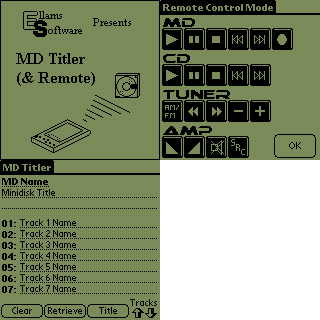
The main page of the Palm software consists of a
track list screen.
This is where you enter all the track names for the
Minidisc you want to title, To enter a track name click on the field beside the
track number a type the name Name in.
Use the Up/Down Palm keys or
Click on the Track Up/Down arrows to scroll through more tracks.
At the top
of the screen is displayed MD Name, This is where you enter the title of the
disc.
If you wish to clear out all the previously entered data click the
'Clear Button', You will be asked to confirm it before it deletes the data.
An Alternative and easier way to enter the track details is to use the
PC Utility included. Using this utility you can type in as many track lists as
you require on your PC, And then by simply clicking the PC 'Send to Palm'
Button.
The track lists will be available on the Palm after the next
Hotsync.
Further details about this utility can be found inside the PC
software itself.
After you have transferred the PC track lists to the Palm,
To select the track list you want to use click the 'Retrieve' Button on the
Palm and a list of Minidiscs will be displayed.
Click the one you wish to
title and all the track information will be transferred to the main track list
page.
To actually start titling the Minidisc turn on the Minidisc
recorder and point the Palm towards the Unit (Point the Palm slightly upwards
if your using a Palm III).
Now when you click the 'Title' Button the Palm
will start titling the Minidisc.
To stop it at any time click one of the
hardware keys.
Remote Control
Mode
Also available is a simple screen which
allows you to use your Palm as a Remote control for Sony audio equipment.
To gain access to the page click on the Menu Icon and from the menu select
'Remote Control'.
You will now have displayed a screen showing many of
the most commonly used functions for Minidisc,Compact Disc,Tuner and Amp.
To control a device point the Palm at the device and click the appropriate
button.
When you have had enough of the Remote control screen click the OK
button to return to the main menu.
How do I use the PC
Software ?
Full instructions are available
within the PC Utility itself.
Simply click on the 'Help' Button/icon
located at the top of the application.
|
 |
|
 |
|
 |
|